How to Manage & Customize Your Match Masters Account
This guide will show you how to set up your Match Masters account correctly and customize your profile.
(Step-by-step.)
You’re about to learn:
- How to Connect Your Match Masters Account with Facebook
- How to Connect Your Account with Google
- How to Change Your Name in Match Masters
- How to Change Your Profile Picture in Match Masters
- How to Change Your Achievement Badge
- How to Change Your Emotes
- How to Change Your Showoff
Let’s get started.
How to Connect Your Match Masters Account to Facebook
Nobody wants to lose months of progress in Match Masters because they got a new phone. That’s exactly why you should link your account to Facebook so you can restore everything at any time.
Here’s how to connect it:
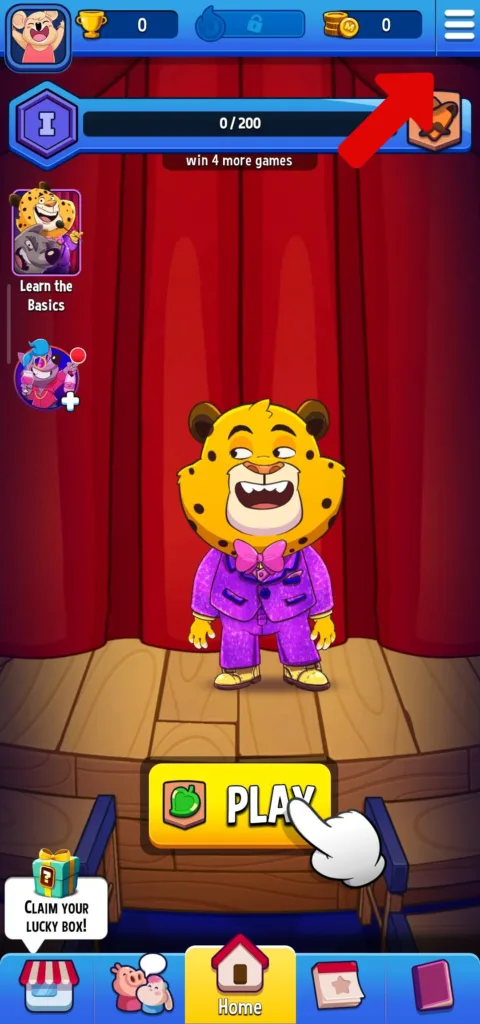
Step #1: open the game and tap on three lines at the top right corner of the screen to open the menu.
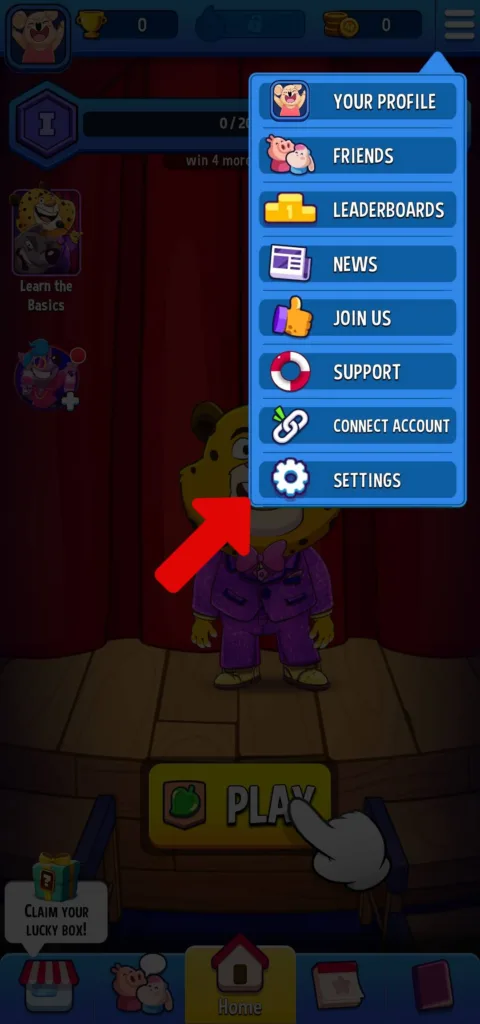
Step #2: tap on “Settings”.
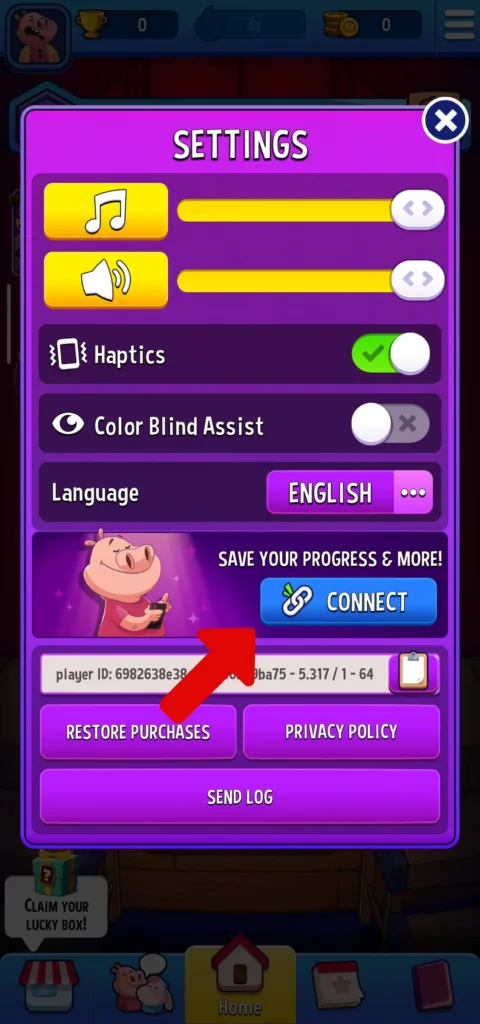
Step #3: tap the blue “Connect” button.
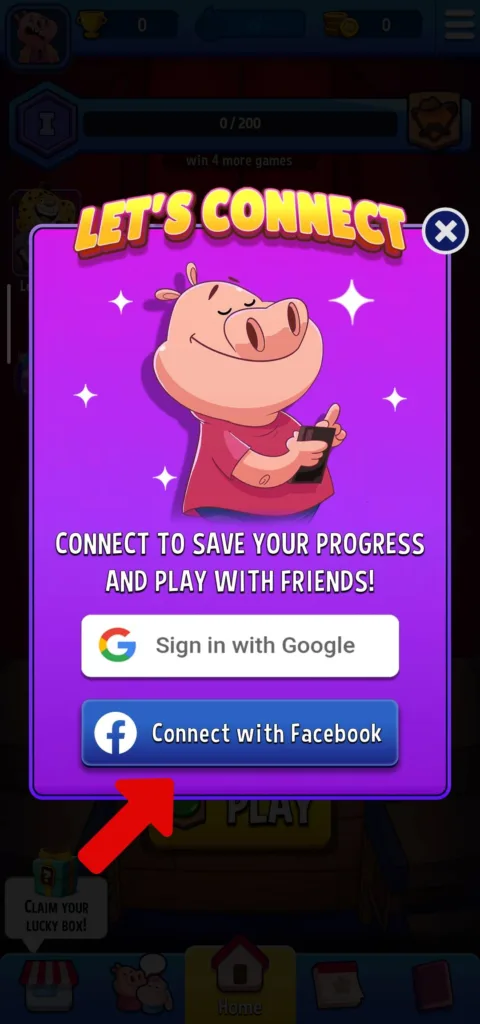
Step #4: tap on “Connect with Facebook”.
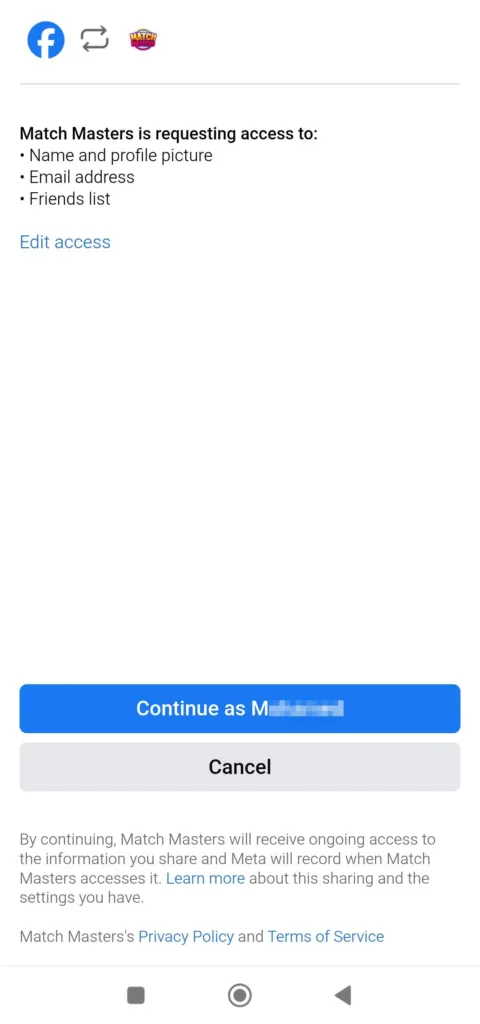
Step #5: Facebook will ask you if you want to give Match Masters access to your account (just make sure you’ve selected the right FB account), then tap on the Continue button.
This leads us to…
How to Connect Your Account to Google
Just follow these steps to connect your Match Masters to Google:
Step #1: open the menu and tap on Settings.
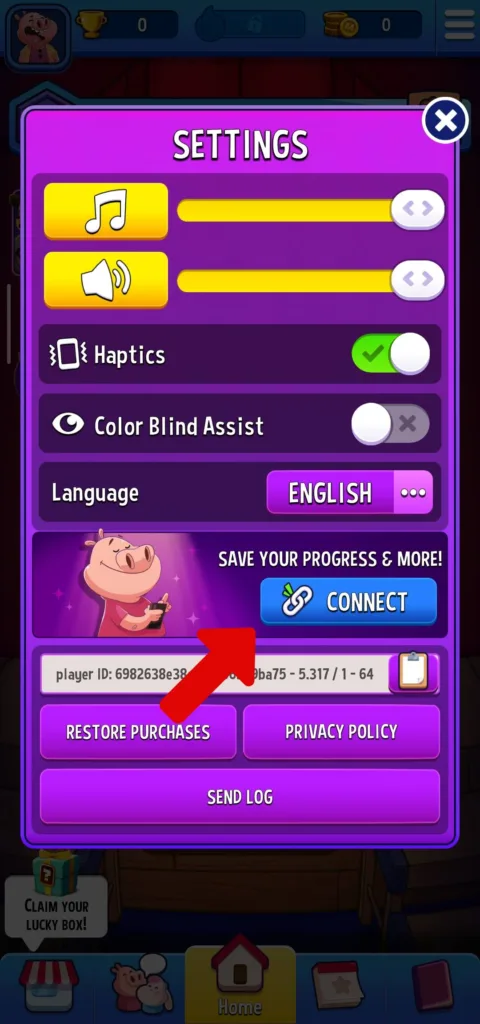
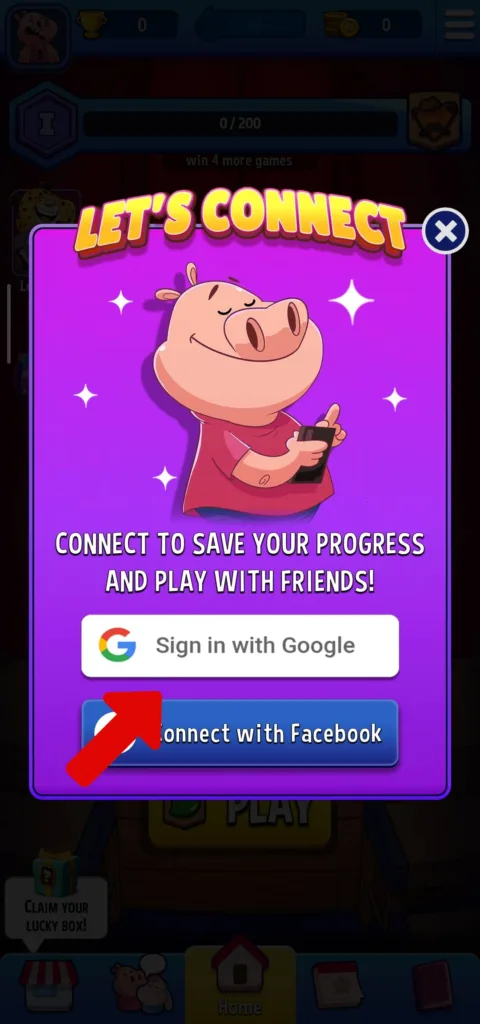
Step #2: tap on the “Connect” button, then tap on “Sign in with Google”.
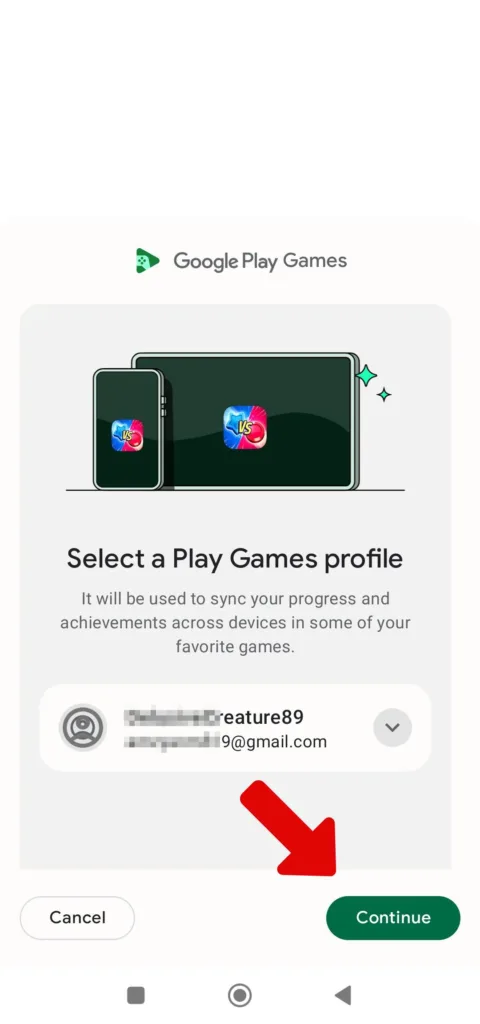
Step #3: select the Google account you want to connect and tap on “Continue”.
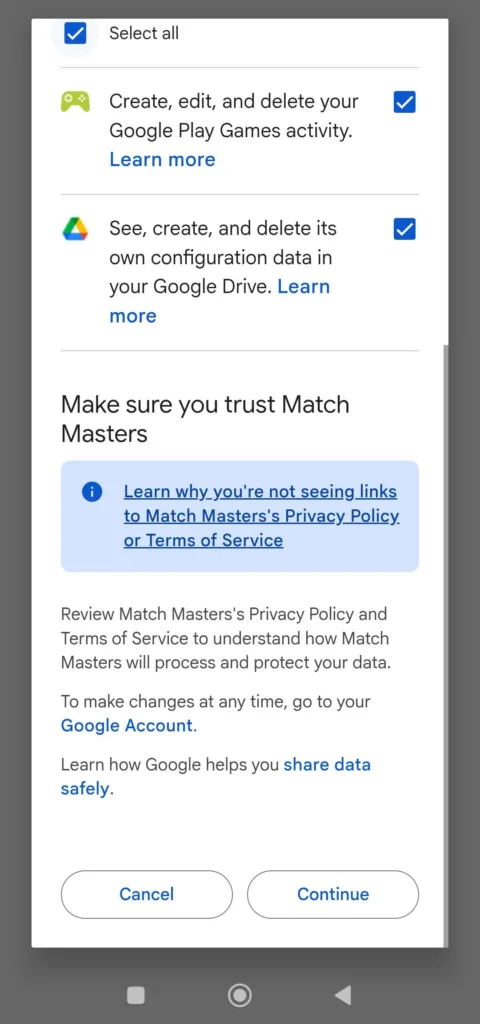
Step #4: you’ll need to confirm that you want to give Match Masters access to your Google account, then tap “Continue”.
Job done!
My recommendation is to connect your Match Masters account to both Google and Facebook for extra security.
How to Change Your Name in Match Masters
When you first start playing Match Masters, it gives you generic names that make your profile look like a bot. Who wants to keep a username such as “GUEST88283”? Players easily recognize that you’re a noob and you might even find yourself rejected from joining teams.
So, let me show you how to change your name in Match Masters:
First, tap on the profile picture at the top left in the home screen.
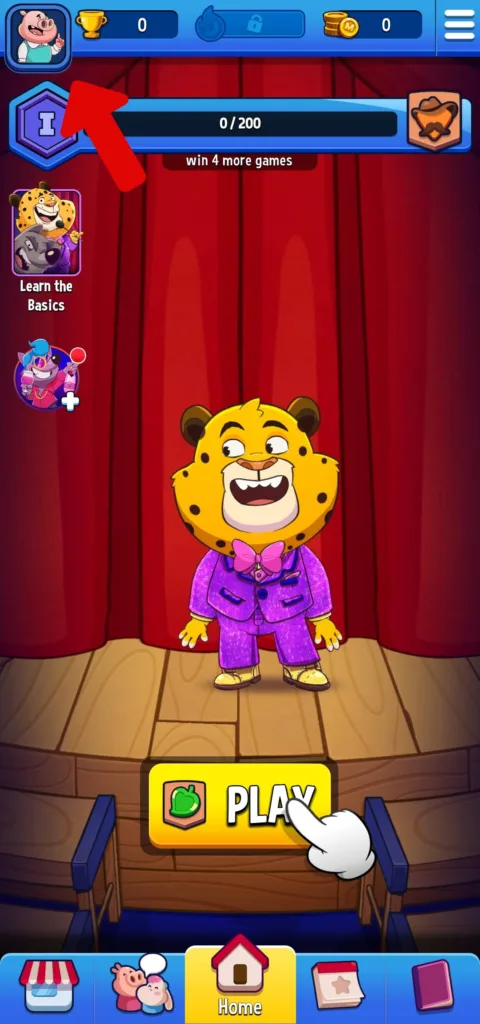
Second, tap on the small pen icon.
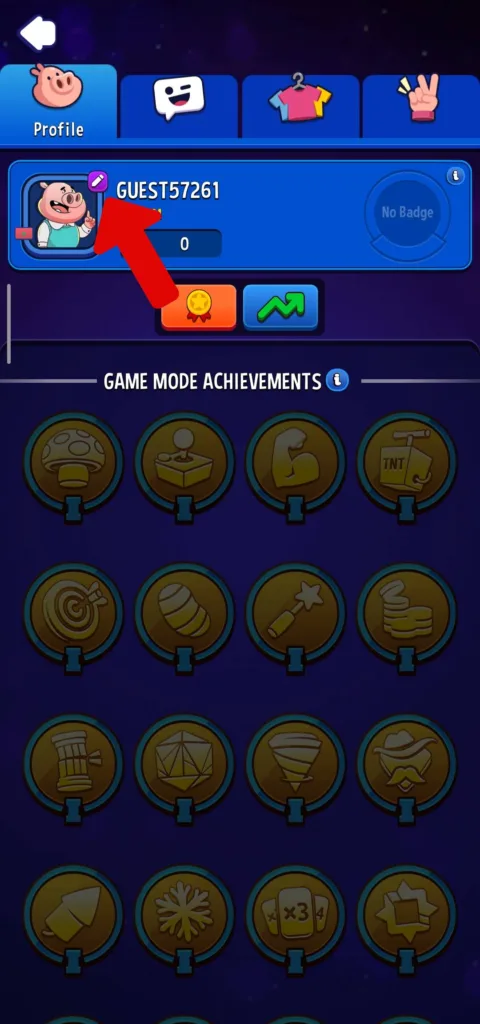
Finally, type your new name in the text box and tap the “DONE” button.
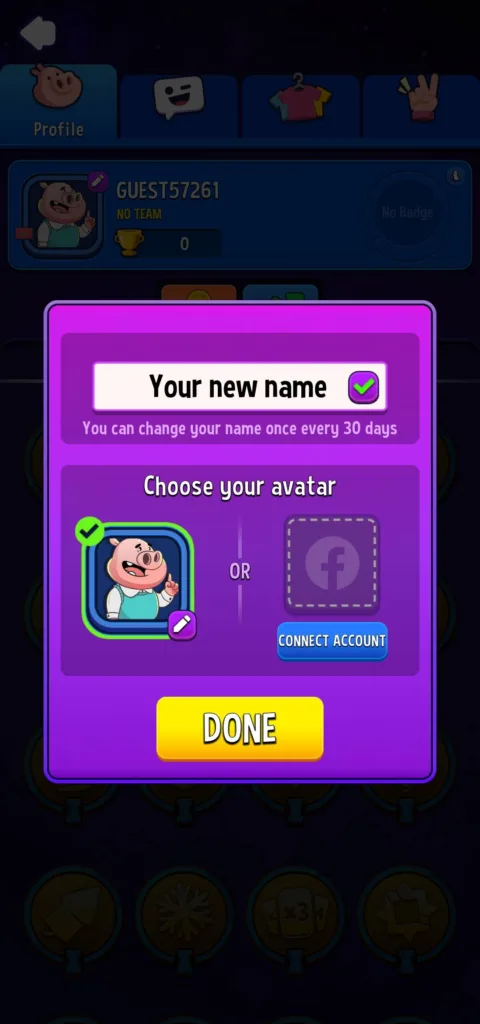
That said, you can change your name only once every 30 days, so choose carefully.
How to Change Your Profile Picture in Match Masters
If you connected Match Masters to Facebook, your profile picture in the game will be the same as FB. This means that Facebook is the only way to set a custom profile image.
Otherwise, you can choose an avatar from the game. Here is how:
First, head to the profile and tap on the profile picture.
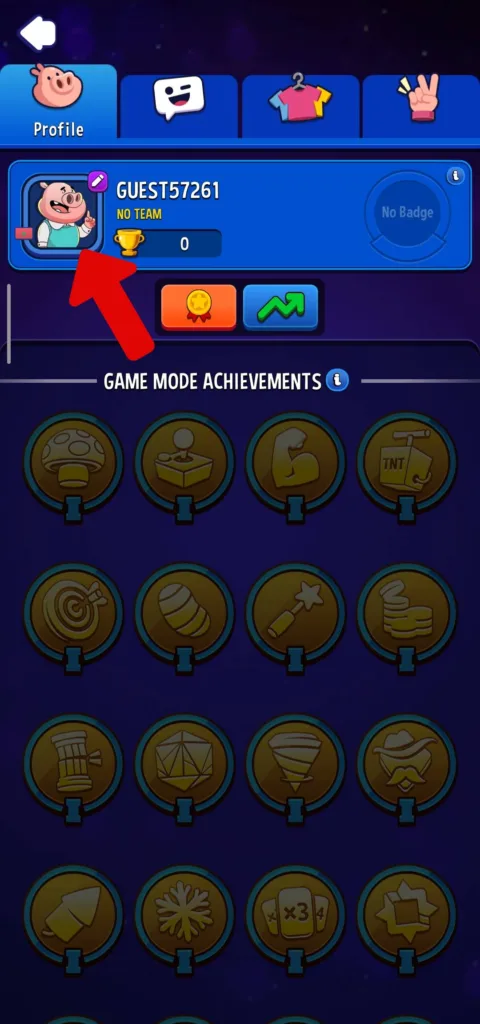
Next, tap on the small pen icon on the picture.
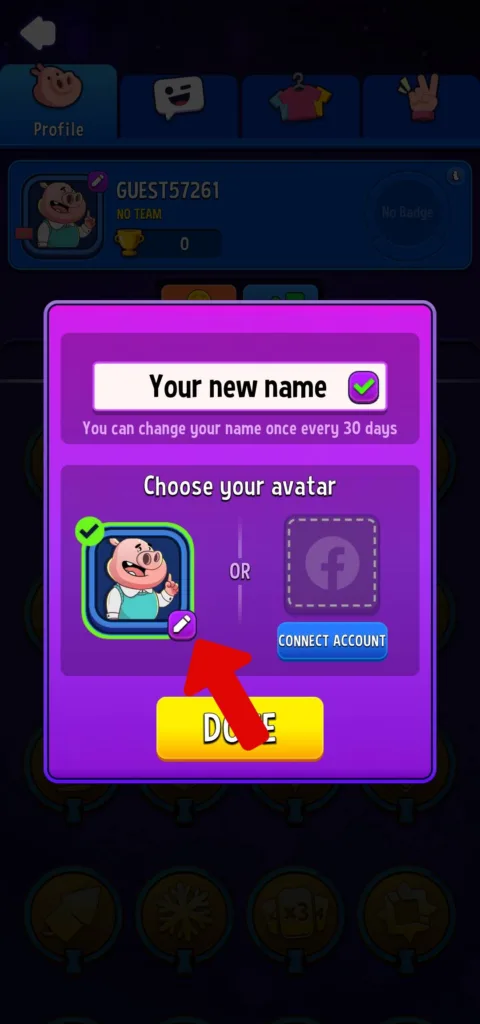
Finally, select the avatar you like and it will be applied as both your profile picture and your character outfit.
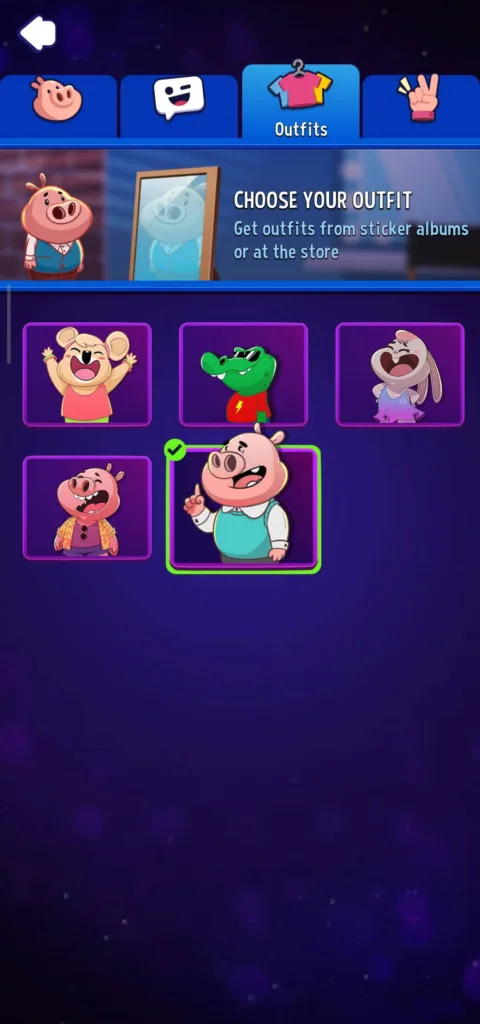
Easy peasy.
How to Change Your Achievement Badge
Your achievement badge will be visible to your competitors in the matches, and to anyone who visits your profile.
In other words: achievement badges are how you flex on your opponents and show off how much of a pro you are. So you need to pick the achievement badge you’re most proud of.
Now, let me show you how to change your achievement badge:
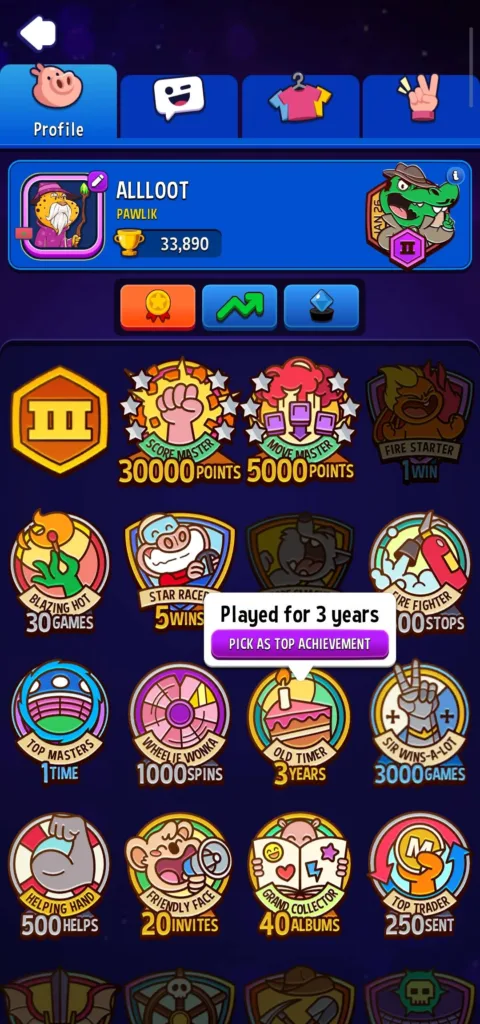
- First, go to your profile and scroll a little bit.
- Then, choose the badge you like more and tap on “Pick as top achievement”.
Two steps, very easy!
How to Change Your Emotes
Emotes are the only way to talk to people during a match, and I love using them to say “Good Luck” or to give a little friendly “Oops” when I make a mistake. If you just started out, you’ll find only six default emotes but you can unlock more through events and album rewards.
With that, it’s the time to change your emotes:
Step #1: open your profile and tap on the chat icon to open the emotes section.
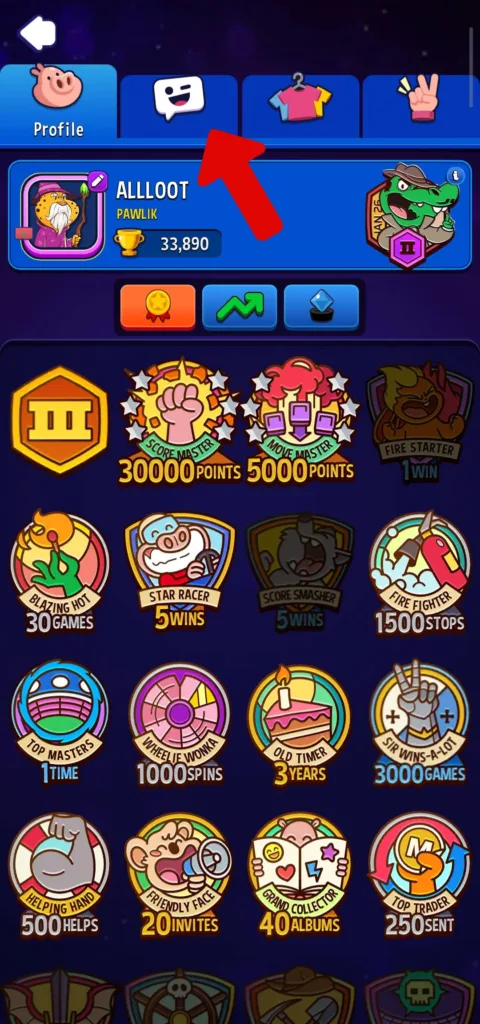
Step #2: tap on the emote you want to activate, and then tap on “Use”.
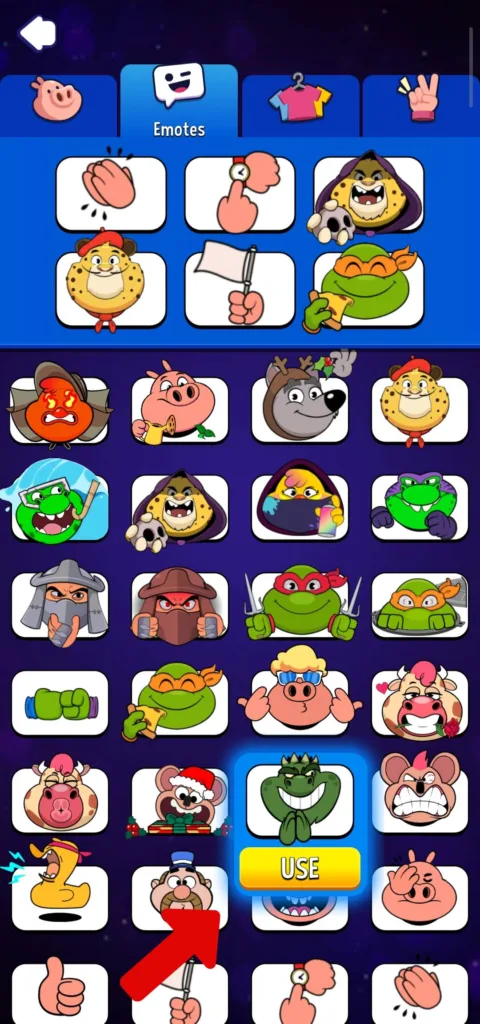
Step #3: select which old emote you want to replace.
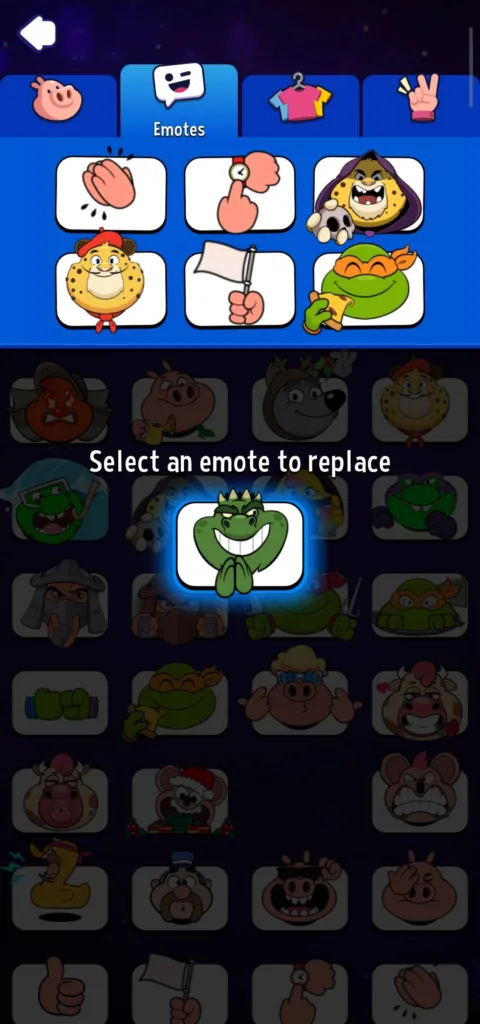
That’s it.
Last up, we have…
How to Change Your Showoff
Showoffs are the animations that show up when you win, and you can earn them from events or album rewards.
So if you got a new one and want to use it, here is how:
First, visit your profile then tap on the peace sign icon.
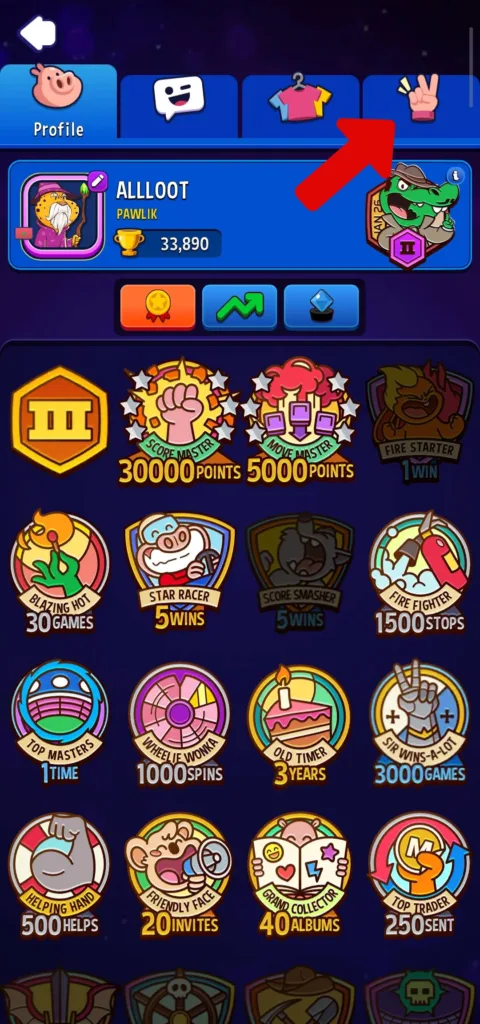
Then, choose your showoff (you can tap the small play button to preview the showoff).
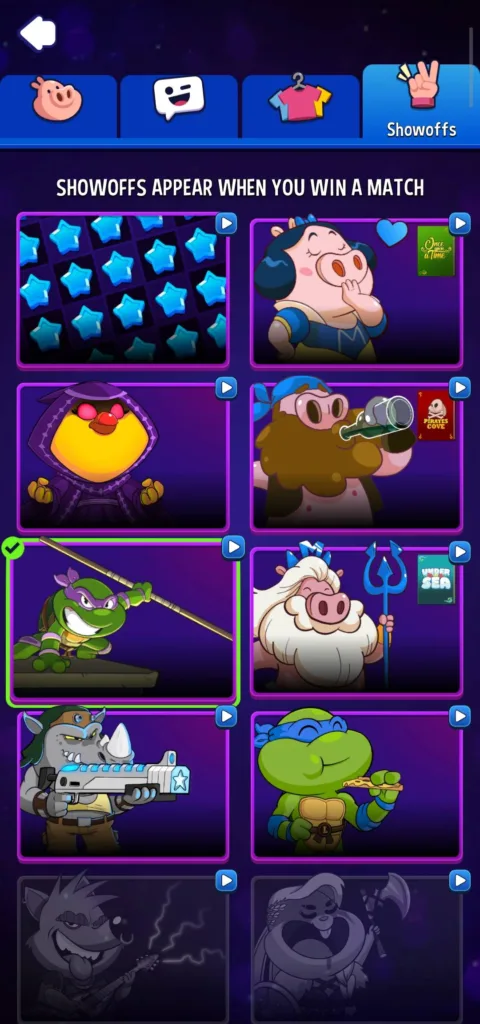
That’s all there is to it.
Conclusion
I hope this guide helps you customize your profile. As you can see, that isn’t a hard task in Match Masters.
My advice?
Start by connecting your account to Facebook AND Google right now. Trust me, you don’t want to lose all your progress if something happens to your phone.
If you got stuck on any step (or a button looks different on your screen), drop a comment and tell me what you see.
And if you love freebies (who doesn’t?), then go check our Match Masters Free Rewards and Match Masters key codes pages to collect free coins and boosters.
Developer: Candivore
Platforms: Android, iOS
Release Date: July 23, 2017
Mode: PVP, Multiplayer