
How to Disconnect Facebook from Travel Town (Step-by-Step)

I’ve noticed a lot of players on Reddit want to disconnect their Travel Town account from Facebook because they’ve linked the game to the wrong account, or they just want to reset their progress and start over.
But they don’t know how to do that, so I decided to create this guide where I will explain how to unlink Travel Town from Facebook. And how to connect the game to a new Facebook account.
Let’s get into it.
How to Disconnect Travel Town from Facebook
Now it’s time to explain how to remove Travel Town from Facebook. So just follow these steps:
1. Open Facebook settings
First, open the Facebook app on your mobile or go to facebook.com through the browser and tap on the menu (three lines at the top right corner). Now scroll down a little bit and select “Settings & Privacy” then tap “Settings”.
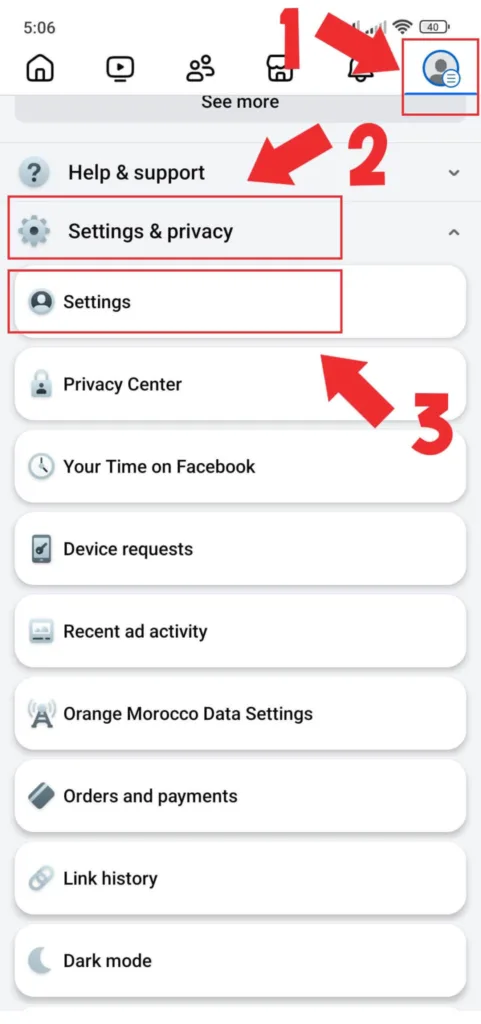
2. Go to apps and websites
Then, in the settings, scroll until you see the “Your activity” section and tap on the “Apps and Websites”…
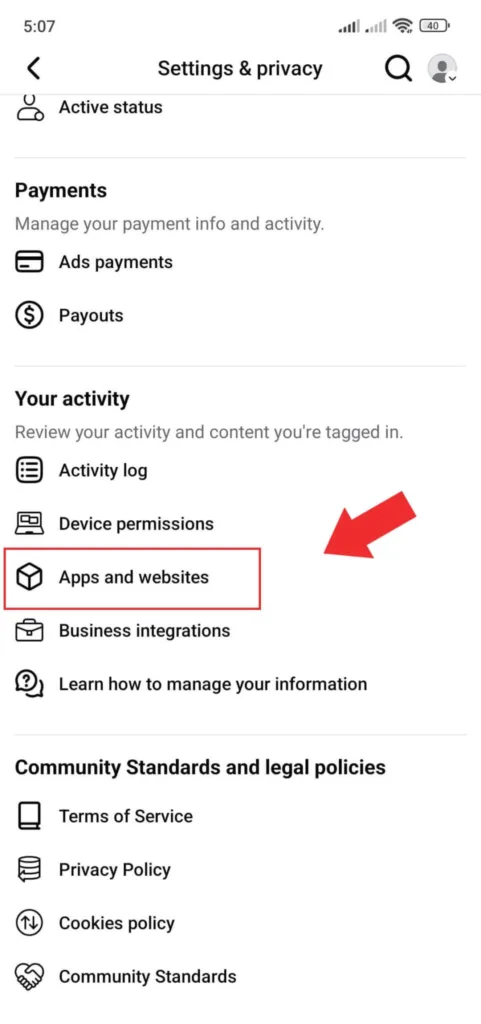
…to see all apps linked to your Facebook account.
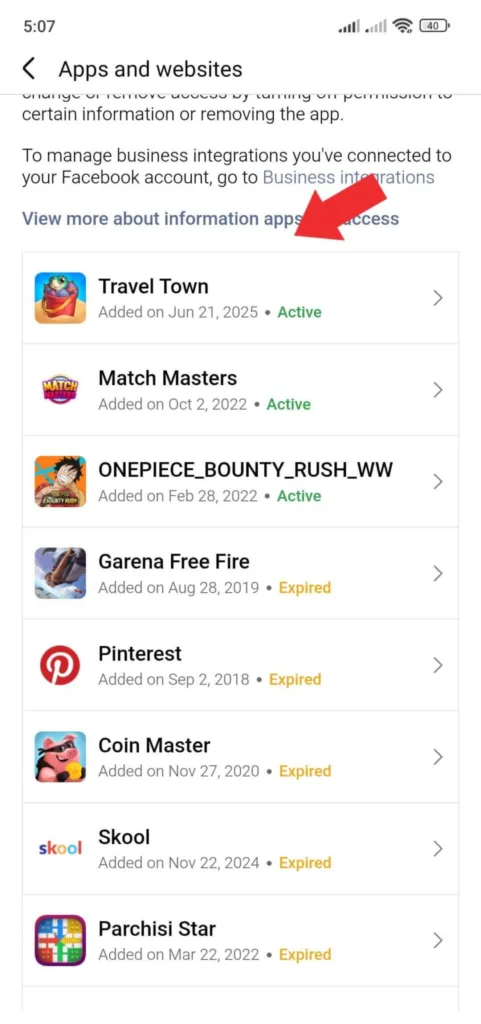
3. Remove Travel Town
Finally, find the Travel Town app in the list and tap it, then tap on the “Remove” button.
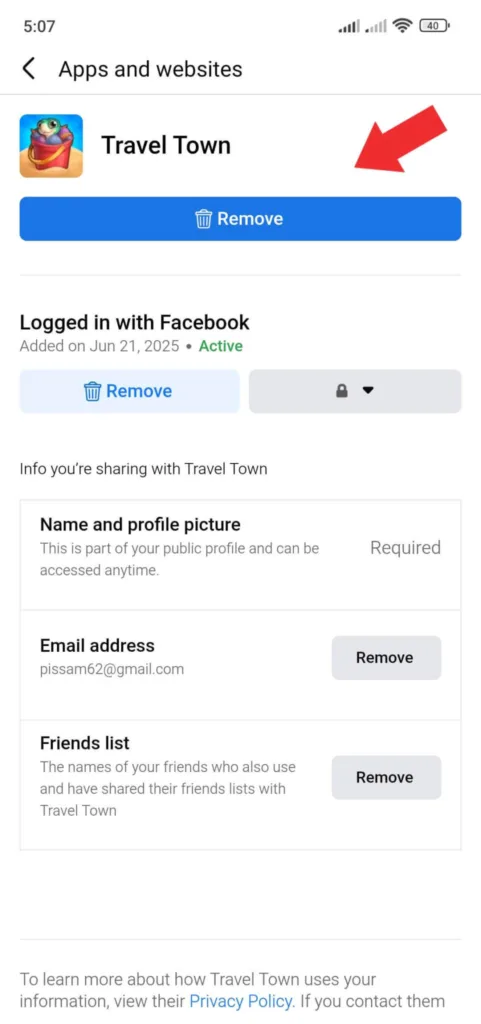
Facebook will ask if you want to remove the game, just tap “Remove” again.
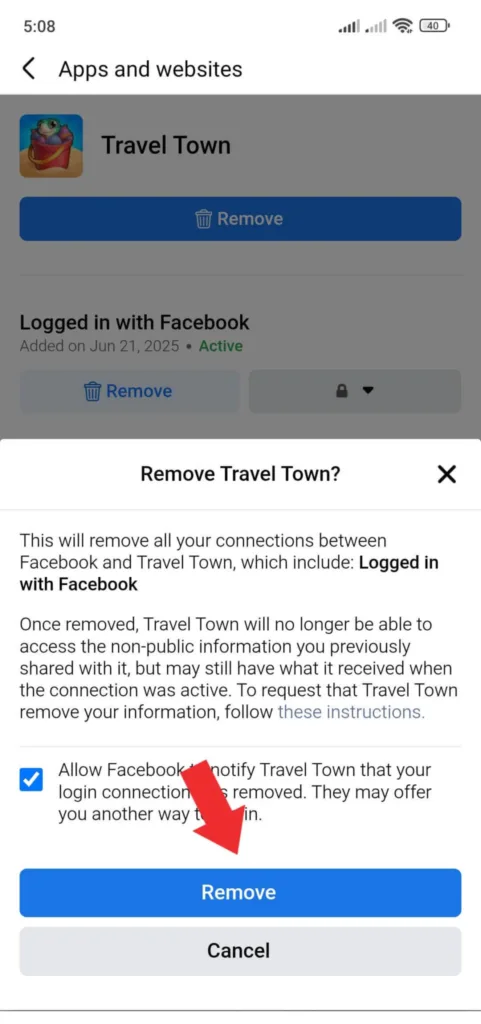
That’s it, your Travel Town account is no longer connected with Facebook.
How to Connect Travel Town to a New Facebook Account
If you’ve connected the wrong Facebook account to Travel Town and you want to switch to a different account, then follow the steps below:
First, disconnect the current Facebook account using the steps I’ve covered above.
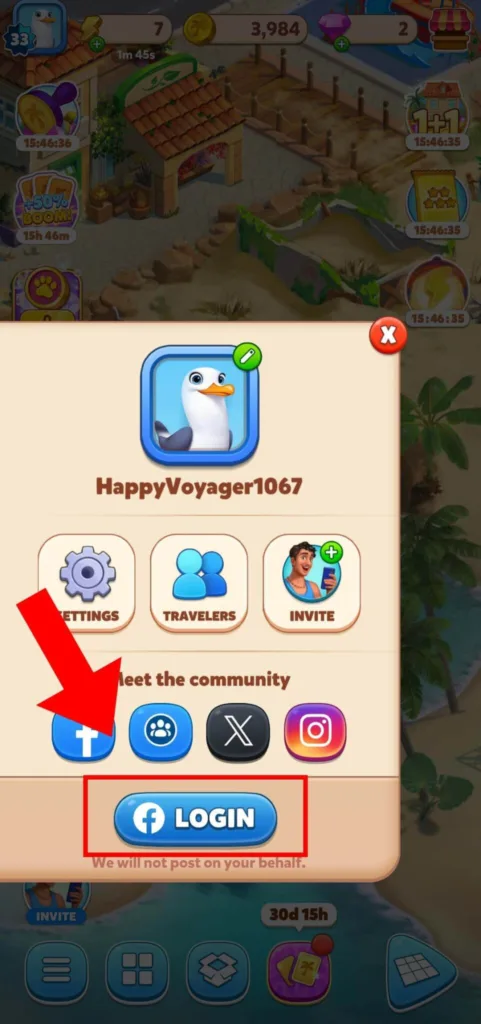
Next, open the Travel Town app, and tap on the menu icon (three lines at the bottom right of your home screen).
Then, tap on the blue “Login” button.
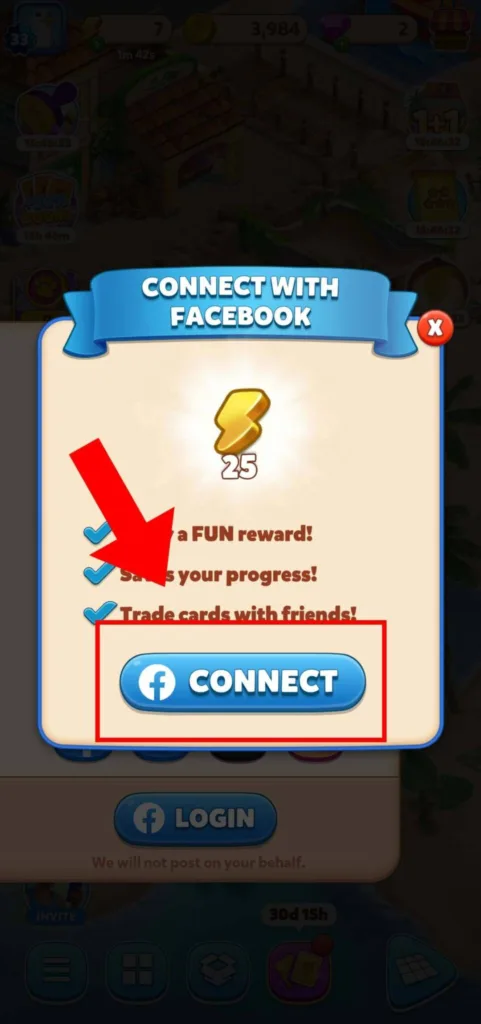
Finally, tap the “Connect” button on the pop-up and log in with the new Facebook account you want to use.
Easy peasy.
How to Reset Travel Town
Many players lose the first half of the Mysterious Fossil, and find themselves in a frustrating situation. Getting stuck with an incomplete fossil is what often leads players to search for ways to reset the game and start from the beginning.
Fortunately, this isn’t as hard as it sounds, and I will explain how to start over in the following steps:
1. Disconnect the game from Facebook
Go to your Facebook account and open the settings, then tap on Apps and Websites. Now find Travel Town and remove it from the list. So this will unlink the game from your Facebook account, and stop it from syncing any progress.
2. Uninstall Travel Town
Delete the Travel Town app from your phone so you can ensure to delete all the saved game data tied to that installation.
3. Create a new backup account
Create a new Gmail account (if you’re on Android) or a new Apple ID (if you’re on iOS). And this account will be used to save your new game progress using Google Play Games or Game Center.
4. Reinstall the game and set up your new account
Download Travel Town again from the App Store or Google Play. When you open it, make sure you connect it to your new Gmail or Apple ID (not your old account) and this will create a new game profile and let you start over from level 1.
How to Delete Travel Town Account
Just so you know before deleting your account, all your progress, energy, and diamonds will be deleted too, and there’s no way to recover them.
That said, if you’ve decided to delete your old Travel Town account to start with a new one, here are the steps to do that:
First, disconnect Travel Town from Facebook then open the game and tap the menu icon.
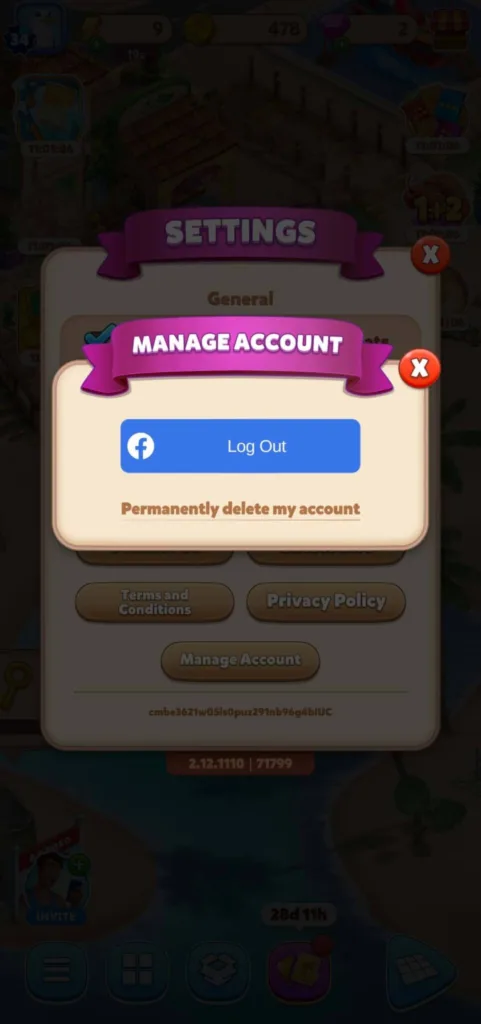
Next, tap on the “Settings” and tap on “Manage Account”.
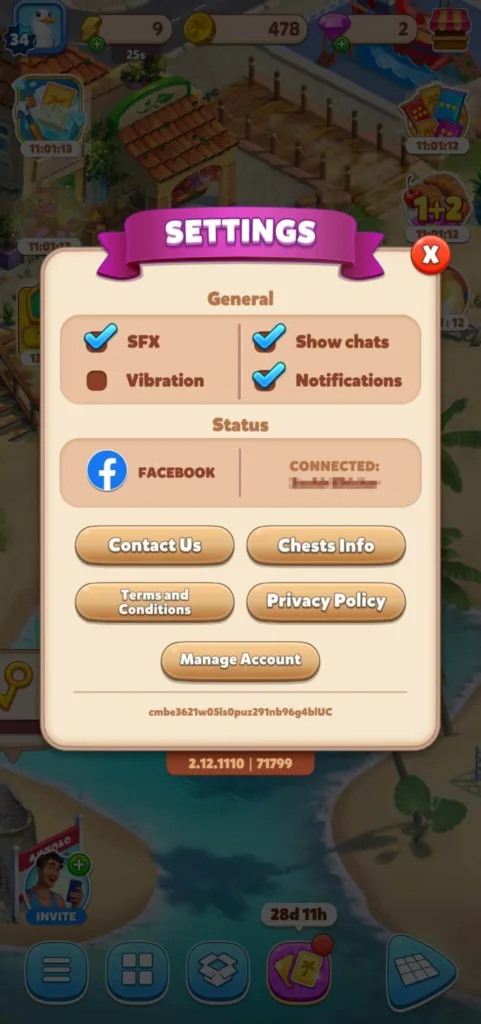
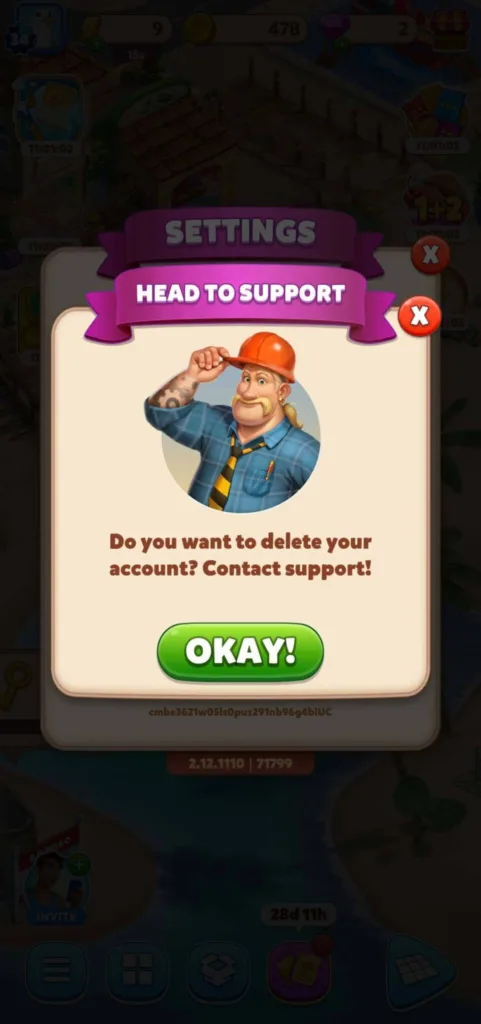
Then, tap on “Permanently Delete My Account” and a pop-up will appear…
…then tap on the “Okay!” button.
Finally, a deletion form will open in your browser…
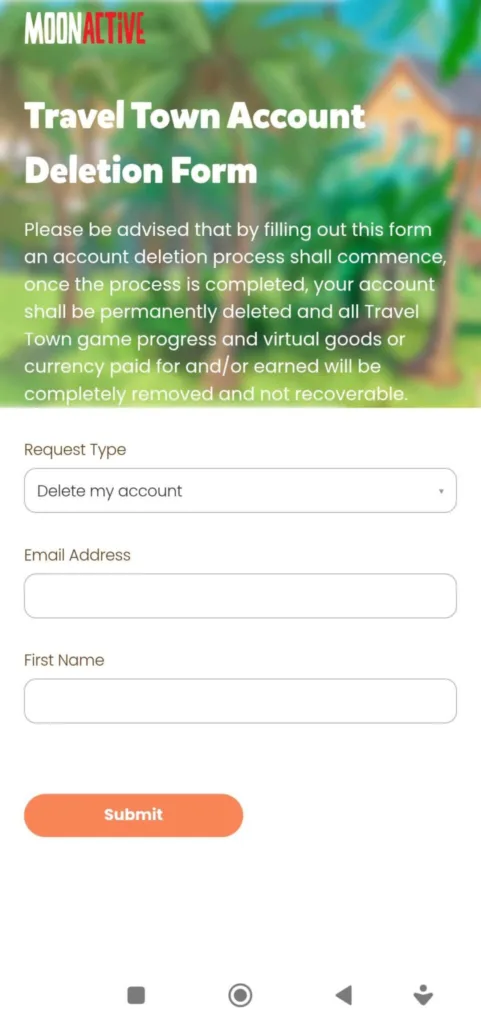
…then you’ll have to do the following steps:
- Choose delete my account
- Enter your email address
- Enter your first name
- Then tap Submit.
And you’ll get a confirmation email from Travel Town support to inform you that your account is deleted.
Conclusion
At this point, you should have a clear idea of what to do, whether you just want to unlink Travel Town from Facebook to switch to a different account. Or delete everything and start fresh, the steps are all here and easy to follow.
Just remember one thing before you make any move. Resetting or deleting your account is permanent and once it’s gone, there’s no way back.
If you get stuck at any step or something doesn’t work the way it should, feel free to drop a comment below, and tell me exactly where you’re struggling. I’ll be happy to help you out.
And if you want to learn more tips, make sure to check out our other Travel Town guides:
- How to Fix Travel Town Auto Orders
- How to Get Free Diamonds in Travel Town
- How to Get the Mysterious Fossil in Travel Town
- How to Add Friends in Travel Town

Developer: Moon Active | Magmatic Games LTD
Platforms: Android, iOS
Release Date: Feb 21, 2022
Mode: Single-player